Windows Persistence (Part 1): Default file extension hijacking

⚠️ Disclaimer | Educational Purpose Only
This content is provided strictly for educational and research purposes.
All techniques, concepts, and examples discussed in this post are intended to support the study of information security, malware analysis, and defensive research in controlled and legal environments.
The author does not encourage, support, or condone the use of this material for malicious, illegal, or unethical activities.
Any actions taken based on the information presented here are the sole responsibility of the reader.
Always ensure that your research and experiments comply with local laws, ethical guidelines, and institutional policies.
Introduction
Hello, in this post I intend to start a series of articles about persistence techniques in the Windows operating system, and welcome to the first post of this series. To understand what a persistence technique in Windows is, we first need to understand what the persistence stage refers to. During a post-exploitation operation, one of the attacker’s main concerns is maintaining access to the compromised system even after reboots or session changes. This is what we call persistence.
Windows provides several mechanisms that can be abused to achieve this goal. Many of them involve modifications to the Windows Registry, which is responsible for storing critical system configurations. One technique that is not widely discussed but is very interesting is Default File Extension Hijacking. This technique abuses the way Windows associates file extensions with programs. By understanding and modifying these associations, it is possible to make the operating system execute arbitrary code whenever the user opens a specific file type, such as .txt, .pdf, .jpg, .docx, and others.
How does Windows decide which program opens a file?
To understand the applicability of this technique, it is first necessary to understand the answer to this question, as it reveals several important details about how the system works internally. When a user double-clicks a file, the operating system needs to identify the program associated with that specific file type. For example, .txt files are usually opened by Notepad.
Although this seems conceptually simple from a user’s perspective, internally Windows relies on a relatively complex structure to resolve these associations. This information is mainly stored in the following registry key:
1
HKLM\Software\Classes
This key contains a large number of subkeys representing file extensions, program identifiers, and behavioral configurations associated with those file types. These behavioral associations will become particularly important later, so keep that in mind.
Understanding the ProgID
The concept of a ProgID is not difficult to understand. It is essentially an identifier that represents a file type and the program responsible for handling it. For example, we can observe the registry key responsible for the .txt extension:
1
HKLM\Software\Classes\.txt
Inside this key there is a default value that points to the ProgID responsible for that file type. In most systems, this value will be txtfile. This means that the .txt extension is associated with a ProgID called txtfile. In other words, Windows does not directly associate .txt files with Notepad. Instead, it first associates .txt with a ProgID, and then uses that ProgID to determine how the file should be handled.
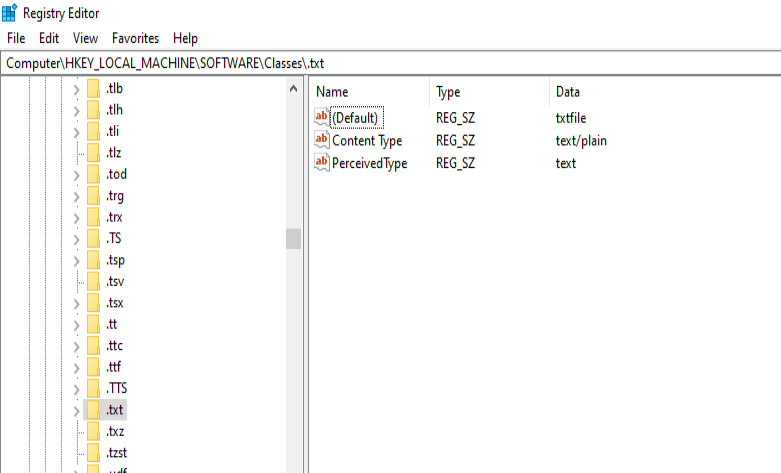
Discovering which command opens the file
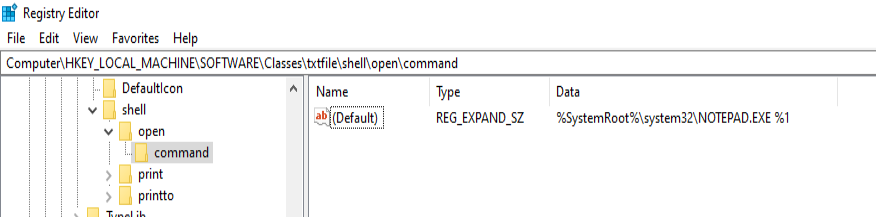
Exploring inside txtfile, it is possible to find a path that leads us to:
1
HKLM\Software\Classes\txtfile\shell\open\command
Inside this key there is a default value that defines which command will be executed when a file of this type is opened:
1
%SystemRoot%\system32\NOTEPAD.EXE %1
This command has two important elements. The first is the path of the executable that will be started, which in our example is Notepad. The second is the parameter %1, which works as a placeholder representing the file opened by the user. In practice, when a user executes a file, basically the operating system starts the program and passes that file as a parameter, something more or less like this:
1
C:\Windows\System32\notepad.exe C:\Users\User\Desktop\teste.txt
File extension hijacking
After understanding these basic concepts, we can move into the logic of the hijacking technique. The attacker’s objective in this persistence scenario is to modify the value stored at:
1
HKLM\Software\Classes\txtfile\shell\open\command
By doing this, it is possible to completely change the behavior of the system when opening different types of files, in our example .txt. So instead of executing Notepad directly, we can modify it so that the system runs an intermediate script.
1
powershell -windowstyle hidden C:\Windows\backdoor.ps1 %1
In this case, whenever a .txt file is opened, Windows will execute PowerShell and pass the file as an argument to the script. From the user’s perspective, nothing different happens, because Notepad will still open normally with the selected file. However, before that happens, our code will also be executed.
Proof of Concept (PoC) and final demonstration
To demonstrate the technique, we can create a simple PowerShell script that executes a payload and then opens the original file. For this, we will create a .ps1 script that performs a connection and then passes the path to Notepad in the following way:
1
C:\Windows\system32\NOTEPAD.EXE $args[0]
With the script created, we need to modify the default value of the following key:
1
HKLM\Software\Classes\txtfile\shell\open\command
using the following command:
reg add "HKLM\Software\Classes\txtfile\shell\open\command" /v "(Default)" /t REG_SZ /d "powershell -windowstylehidden C:\Windows\backdoor.ps1 %1" /f
Now our persistence is established. Whenever a user clicks on a .txt file, our payload is triggered and the connection is initiated.